Metadata & Sample Table
Annotate samples, import metadata, split filenames, sort and filter rows, and export TSV files.
3. The Metadata Table
Every loaded file becomes one row in Table of Loaded FCS Samples. Each row has a checkbox; only checked rows are included the next time you plot. The filename column is read-only (shown without its .fcs extension); every other column is editable.
Editing annotations
Click into any annotation cell to type a value directly — strain, replicate, arrest status, timepoint, or whatever custom columns you've configured (see below). Edits are stored immediately and are included if you save a session or export the table.
Use the add-column icon in the table title bar to create a blank editable metadata column by hand. Use the metadata import icon '%3e%3cpath%20d='m%2019,16%20v%206'%20id='path5'%20style='fill:%23000000;fill-opacity:1;stroke:%2301a5af;stroke-opacity:1'%20/%3e%3cpath%20d='m%2022,19%20-3,3%20-3,-3'%20id='path6'%20style='fill:none;fill-opacity:1;stroke:%2301a5af;stroke-opacity:1'%20/%3e%3c/g%3e%3c/svg%3e) to load a CSV or TSV metadata file. The file must include a filename-like column such as Filename, Sample Name, or FCS File; PhaseFinder matches those values to the currently loaded FCS filenames and ignores metadata rows for files that are not loaded.
to load a CSV or TSV metadata file. The file must include a filename-like column such as Filename, Sample Name, or FCS File; PhaseFinder matches those values to the currently loaded FCS filenames and ignores metadata rows for files that are not loaded.
'%20xmlns:inkscape='http://www.inkscape.org/namespaces/inkscape'%20xmlns:sodipodi='http://sodipodi.sourceforge.net/DTD/sodipodi-0.dtd'%20xmlns='http://www.w3.org/2000/svg'%20xmlns:svg='http://www.w3.org/2000/svg'%3e%3cdefs%20id='defs4'%20/%3e%3csodipodi:namedview%20id='namedview4'%20pagecolor='%23ffffff'%20bordercolor='%23000000'%20borderopacity='0.25'%20inkscape:showpageshadow='2'%20inkscape:pageopacity='0.0'%20inkscape:pagecheckerboard='0'%20inkscape:deskcolor='%23d1d1d1'%20inkscape:zoom='25.072828'%20inkscape:cx='9.8911858'%20inkscape:cy='11.267177'%20inkscape:window-width='1920'%20inkscape:window-height='1111'%20inkscape:window-x='-9'%20inkscape:window-y='-9'%20inkscape:window-maximized='1'%20inkscape:current-layer='svg4'%20/%3e%3cpath%20stroke='none'%20d='M%201.9695691,0.61176002%20H%2025.969569%20V%2024.61176%20H%201.9695691%20Z'%20fill='none'%20id='path1'%20/%3e%3cpath%20d='m%206.5050205,4.0003187%20h%204.4164165%20a%201.1041042,1.1088357%200%200%201%201.104105,1.1088358%20V%2020.632855%20A%201.1041042,1.1088357%200%200%201%2010.921437,21.74169%20H%206.5050205%20A%201.1041042,1.1088357%200%200%201%205.4009163,20.632855%20V%205.1091545%20A%201.1041042,1.1088357%200%200%201%206.5050205,4.0003187'%20id='path2'%20style='stroke:%23072c67;stroke-width:2.21293;stroke-opacity:1'%20/%3e%3cg%20id='g4'%20transform='translate(0.37421659,0.07332842)'%3e%3cpath%20d='m%2016.042339,12.797676%20h%206.666666'%20id='path3'%20style='stroke:%2301a5af;stroke-width:2.58199;stroke-opacity:1'%20/%3e%3cpath%20d='M%2019.375672,9.4643433%20V%2016.131009'%20id='path4'%20style='stroke:%2301a5af;stroke-width:2.58199;stroke-opacity:1'%20/%3e%3c/g%3e%3crect%20x='0.61176002'%20y='0.61176002'%20width='26.715618'%20height='24.807444'%20rx='4.8176265'%20ry='4.8176265'%20fill='none'%20stroke='%23072c67'%20stroke-width='1.22352'%20stroke-linejoin='round'%20id='rect5'%20/%3e%3c/svg%3e) in the table title bar to create a blank editable metadata column by hand. Use the metadata import icon
in the table title bar to create a blank editable metadata column by hand. Use the metadata import icon CSV/TSV source headers must be unique after trimming and case normalization. An import with duplicate headers is rejected before changing the table, and the error identifies both source column numbers.
Sorting & filtering
- Sort: click a column header's label to toggle ascending/descending, or click one of the small ▲ / ▼ arrows to jump straight to that direction. The Timepoint column sorts numerically even though it's stored as text.
- Filter: click the pill under a column header to open a checklist of that column's distinct values; check one or more values to show only matching rows. Clear the checkboxes to show all rows again.
- Filtering hides and deselects: a row hidden by a filter is automatically unchecked, so what's plotted always matches "visible ∩ checked". Removing the filter does not automatically re-check the row.
- The header checkbox selects or deselects every currently visible row (it shows an indeterminate dash when only some visible rows are checked).
Filename metadata wizard
Rather than guessing annotation values, PhaseFinder lets you derive metadata columns directly from each filename. The wizard opens automatically about a second after your first files load (only once per browser tab); you can reopen it any time via the filename-metadata icon in the table's title bar (it's disabled until at least one file is loaded).
'%20xmlns:inkscape='http://www.inkscape.org/namespaces/inkscape'%20xmlns:sodipodi='http://sodipodi.sourceforge.net/DTD/sodipodi-0.dtd'%20xmlns='http://www.w3.org/2000/svg'%20xmlns:svg='http://www.w3.org/2000/svg'%20xmlns:rdf='http://www.w3.org/1999/02/22-rdf-syntax-ns%23'%20xmlns:cc='http://creativecommons.org/ns%23'%20xmlns:dc='http://purl.org/dc/elements/1.1/'%3e%3csodipodi:namedview%20id='namedview1'%20pagecolor='%23ffffff'%20bordercolor='%23000000'%20borderopacity='0.25'%20inkscape:showpageshadow='2'%20inkscape:pageopacity='0.0'%20inkscape:pagecheckerboard='0'%20inkscape:deskcolor='%23d1d1d1'%20inkscape:zoom='1.2499764'%20inkscape:cx='365.60691'%20inkscape:cy='340.40643'%20inkscape:window-width='1920'%20inkscape:window-height='1111'%20inkscape:window-x='1911'%20inkscape:window-y='-9'%20inkscape:window-maximized='1'%20inkscape:current-layer='svg5'%20/%3e%3cdefs%20id='defs5'%20/%3e%3ctitle%20id='title'%3eSplit%20text%20into%20columns%3c/title%3e%3cdesc%20id='desc'%3eA%20branching%20split%20arrow%20enclosed%20in%20a%20rounded%20rectangle.%3c/desc%3e%3crect%20x='16'%20y='16'%20width='698.71918'%20height='648.81287'%20rx='126'%20ry='126'%20fill='none'%20stroke='%23072c67'%20stroke-width='32'%20stroke-linejoin='round'%20id='rect1'%20/%3e%3cg%20id='g1'%20transform='translate(-20.595215)'%3e%3cg%20fill='none'%20stroke='%23072c67'%20stroke-width='34'%20stroke-linecap='round'%20stroke-linejoin='round'%20id='g3'%20style='stroke-width:45.3516;stroke-dasharray:none'%20transform='matrix(1.2127464,0,0,1.2127464,-68.197249,-72.533716)'%3e%3cpath%20d='M%20145,340.406%20H%20286'%20id='path1'%20style='stroke-width:45.3516;stroke-dasharray:none'%20/%3e%3cpath%20d='M%20286,340.406%20C%20350,340.406%20355,221%20431,221%20h%20139'%20id='path2'%20style='stroke-width:45.3516;stroke-dasharray:none'%20/%3e%3cpath%20d='M%20286,340.406%20C%20350,340.406%20355,460%20431,460%20H%20570'%20id='path3'%20style='stroke-width:45.3516;stroke-dasharray:none'%20/%3e%3c/g%3e%3cpath%20d='m%20605.17095,128.5612%2053.39479,65.28575%20-53.39479,65.28574'%20id='path4'%20style='fill:none;stroke:%2301a5af;stroke-width:66.3877;stroke-linecap:round;stroke-linejoin:round;stroke-dasharray:none'%20/%3e%3cpath%20d='m%20605.17095,416.98629%2053.39479,65.28575%20-53.39479,65.28574'%20id='path4-4'%20style='fill:none;stroke:%2301a5af;stroke-width:66.3877;stroke-linecap:round;stroke-linejoin:round;stroke-dasharray:none'%20/%3e%3c/g%3e%3crect%20x='16'%20y='16'%20width='698.71918'%20height='648.81287'%20rx='126'%20ry='126'%20fill='none'%20stroke='%23072c67'%20stroke-width='32'%20stroke-linejoin='round'%20id='rect5'%20/%3e%3cmetadata%20id='metadata18'%3e%3crdf:RDF%3e%3ccc:Work%20rdf:about=''%3e%3cdc:title%3eSplit%20text%20into%20columns%3c/dc:title%3e%3c/cc:Work%3e%3c/rdf:RDF%3e%3c/metadata%3e%3c/svg%3e) in the table's title bar (it's disabled until at least one file is loaded).
in the table's title bar (it's disabled until at least one file is loaded).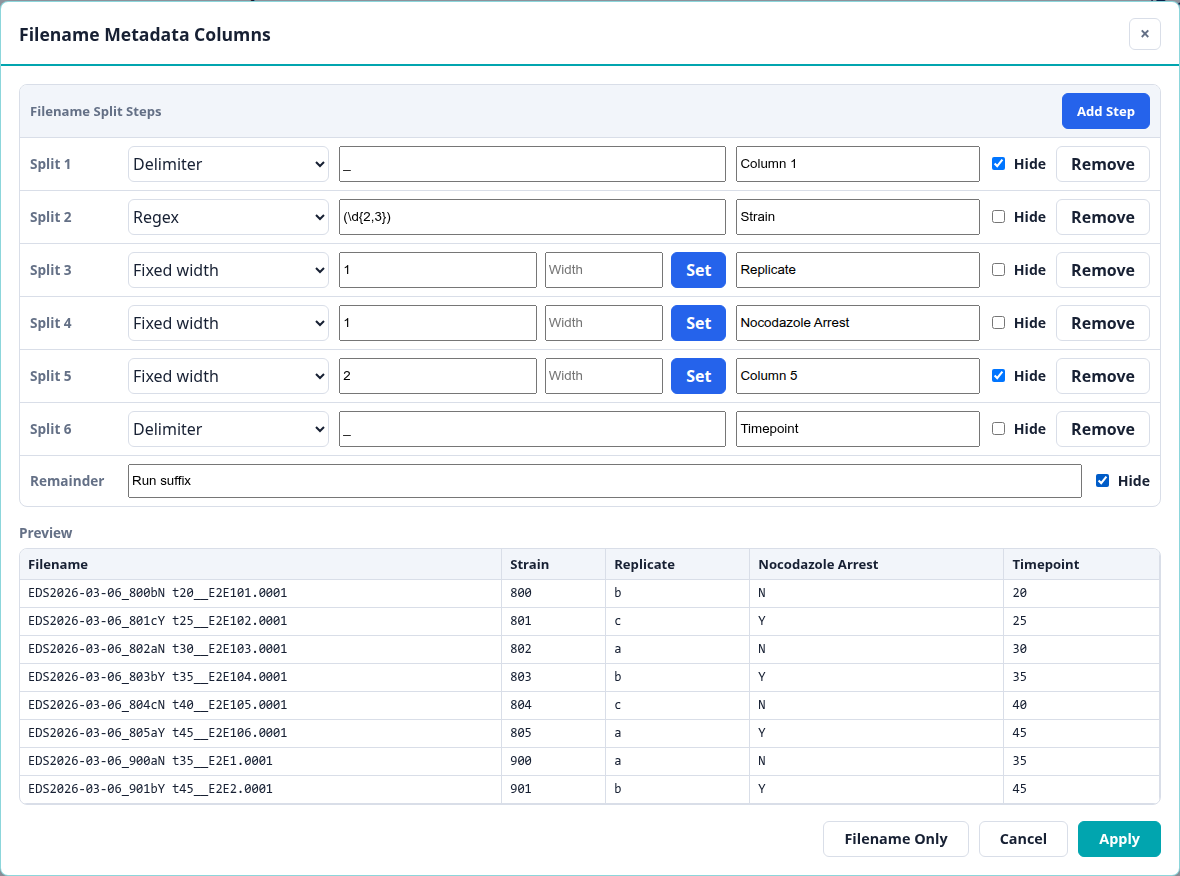
The wizard works left to right through the filename. Each split step extracts one piece from the current remaining text; the text after that split becomes the input to the next step. The file extension is already stripped before the first rule runs.
- Delimiter — splits at the first occurrence of a fixed character or string, e.g.
_. - Fixed width — splits at a character position. Enter one or more comma/space-separated break positions, or type a column width into the small box and click Set to convert it into a break position automatically.
- Regex — splits using a JavaScript regular expression. If the pattern has a capture group, the captured text becomes the column value (useful for pulling a token out of the middle of a name); otherwise everything before the match becomes the value.
Every step (and the final Remainder, i.e. whatever text is left after all steps) gets its own column name and a Hide checkbox to exclude it from the table entirely. Use Add Step to add another split, or the step's Remove button to delete it (at least one step must remain). The Preview panel shows how the first 20 loaded filenames would split with the current configuration, updating live as you edit.
In the example above, a filename like EDS2026-03-06_800bN t20__E2E101.0001.fcs is parsed into:
| Step | Rule | Captured text | Remainder sent to next step | Shown? |
|---|---|---|---|---|
| Split 1 | Delimiter _ | EDS2026-03-06 | 800bN t20__E2E101.0001 | Hidden |
| Split 2 | Regex (\d{2,3}) | 800 | bN t20__E2E101.0001 | Strain |
| Split 3 | Fixed width 1 | b | N t20__E2E101.0001 | Replicate |
| Split 4 | Fixed width 1 | N | t20__E2E101.0001 | Nocodazole Arrest |
| Split 5 | Fixed width 2 | t | 20__E2E101.0001 | Hidden |
| Split 6 | Delimiter _ | 20 | _E2E101.0001 | Timepoint |
| Remainder | After all rules | _E2E101.0001 | Hidden |
That leaves the visible columns Filename, Strain, Replicate, Nocodazole Arrest, and Timepoint. The hidden pieces are still used while parsing, but they do not become metadata table columns.
Regex quick primer
Regex is useful when the next value is identified by a pattern rather than a fixed separator. Parentheses create a capture group; if a regex step has a capture group, PhaseFinder uses the captured text as that column's value.
| Pattern | Useful when |
|---|---|
(\d{2,3}) | Capture a 2- or 3-digit strain number. |
^([A-Za-z]) | Capture the next single letter at the start of the remaining text, such as a replicate or arrest flag. |
t(\d+) | Capture one or more digits after t, often used for timepoints like t20. |
_(\d+) | Capture digits that appear after an underscore. |
- Apply commits the configured columns, replacing whatever custom columns exist. Values already typed for a column are kept if that column's field key is unchanged; values for genuinely new columns are filled in from the split.
- Filename Only clears all custom columns, leaving just the read-only Filename column.
- Cancel (or the Esc key) discards any unsaved edits in the wizard.
The last-applied split configuration is remembered in your browser (not tied to any one set of files) and is reapplied automatically to files you load later, and is also captured when you save a session.
Exporting to TSV

 in the metadata table title bar.
The export icon in the table's title bar exports exactly the currently visible rows as a tab-separated .tsv file. Active filters are respected, so the exported file matches the rows you are looking at in the table.
The TSV includes the filename, every visible metadata column created by the wizard or typed by hand, and any summary-statistics columns currently shown. This makes the export useful as an analysis-ready metadata sheet after you have annotated samples and calculated channel statistics.
Spreadsheet safety: export leaves PhaseFinder's stored values unchanged, but prefixes string cells whose first non-control character is =, +, -, or @ with an apostrophe so spreadsheet software treats them as text. Genuine numeric negative values remain numeric. The protection targets ASCII formula syntax; visually similar Unicode characters are exported unchanged because they are not spreadsheet operators.